Guides
January 4, 2026
Share post:
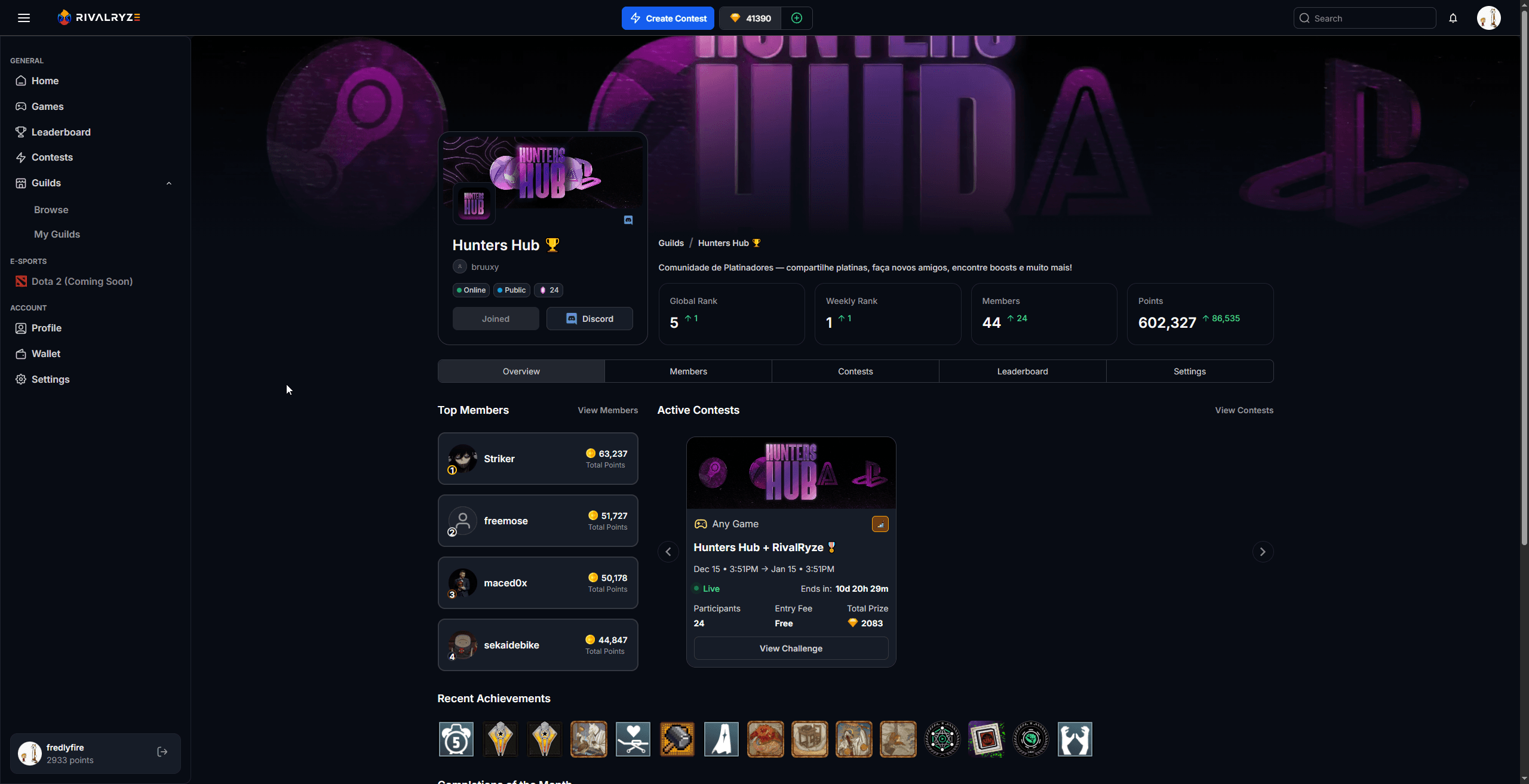
RivalRyze Guild Setup Guide (Discord Server Onboarding)
RivalRyze is designed to plug directly into your Discord server so your community can run contests, track progress, and celebrate milestones automatically. This guide walks you through creating a RivalRyze Guild and onboarding your Discord server in a few minutes.
What you’ll need
Before you start, make sure you have:
A RivalRyze account
A Discord account connected to RivalRyze
Discord permissions to add apps to the server (typically Manage Server)
Note on permissions: RivalRyze does not request Admin permissions during the add-to-server flow.
Step 1 — Create your RivalRyze account and connect Discord
Go to app.rivalryze.com
Sign up using one of the following:
Sign up with Discord, or
Email + password, then connect your Discord account afterward
Step 2 — Create your Guild in RivalRyze
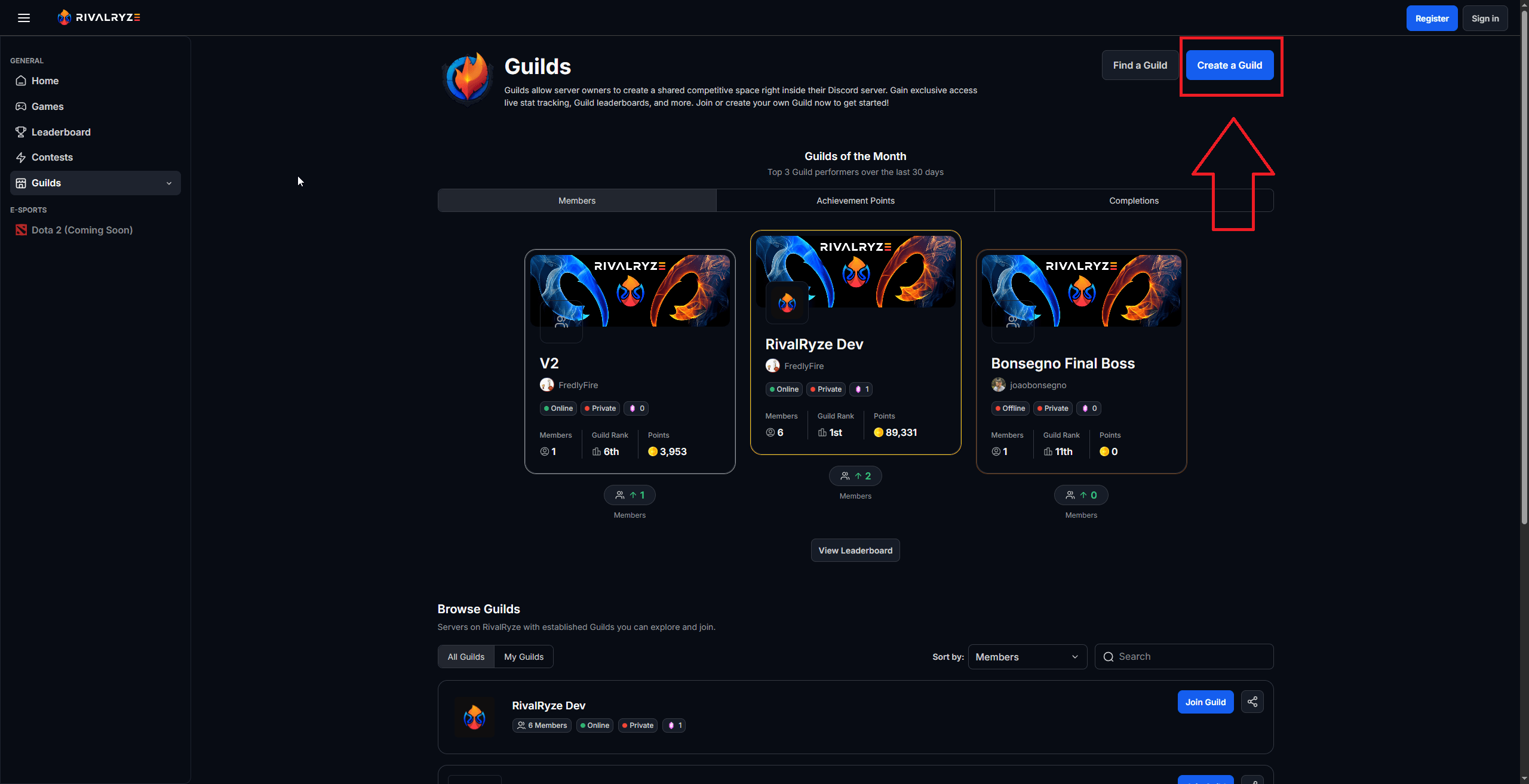
Navigate to the Guilds page:
Click Create Guild
Click Add RivalRyze to Discord
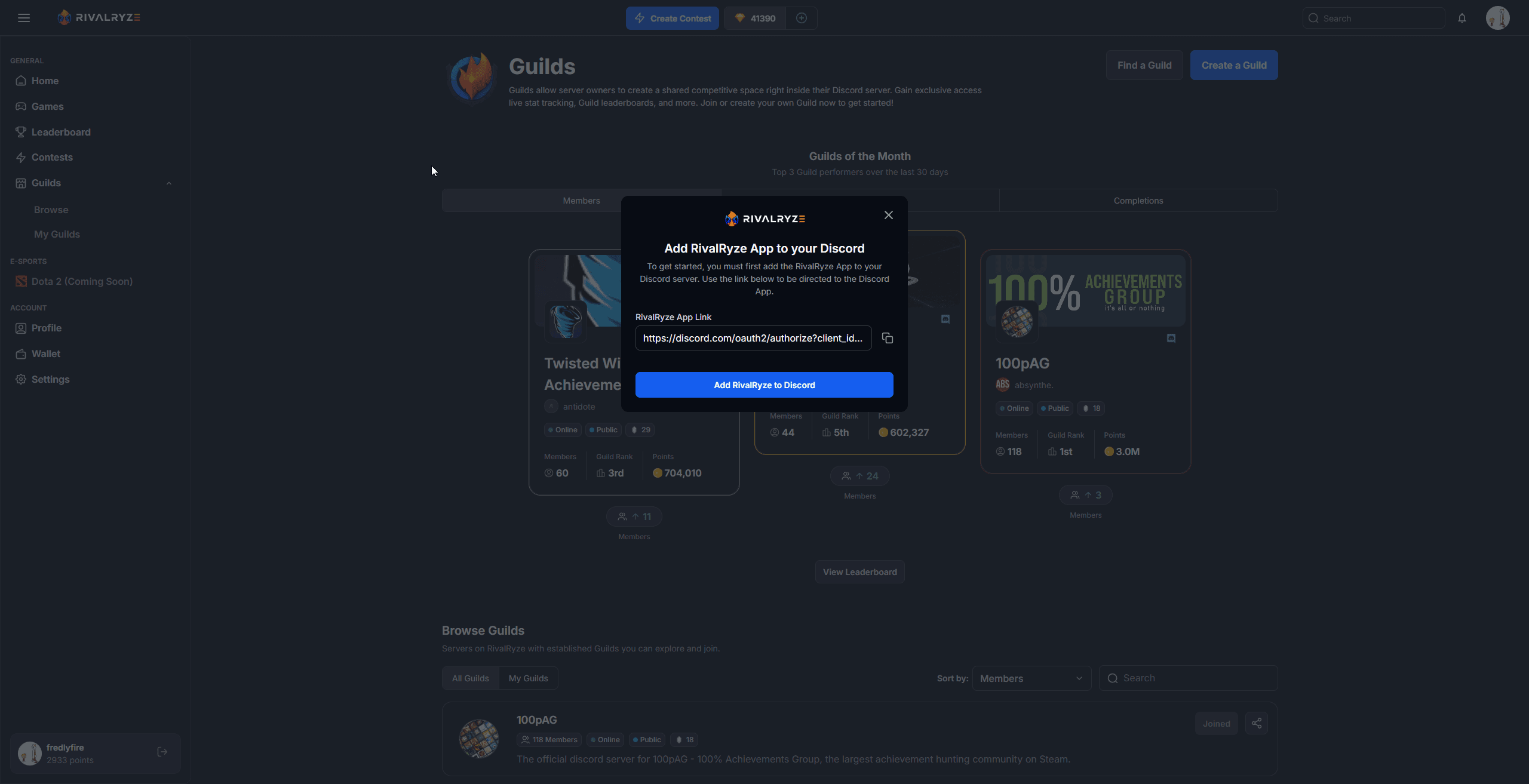
This will open the Discord authorization screen.
Step 3 — Add RivalRyze to your Discord server
On the Discord authorization screen:
Select the server you want to add RivalRyze to
(you must have permission to add apps to that server)
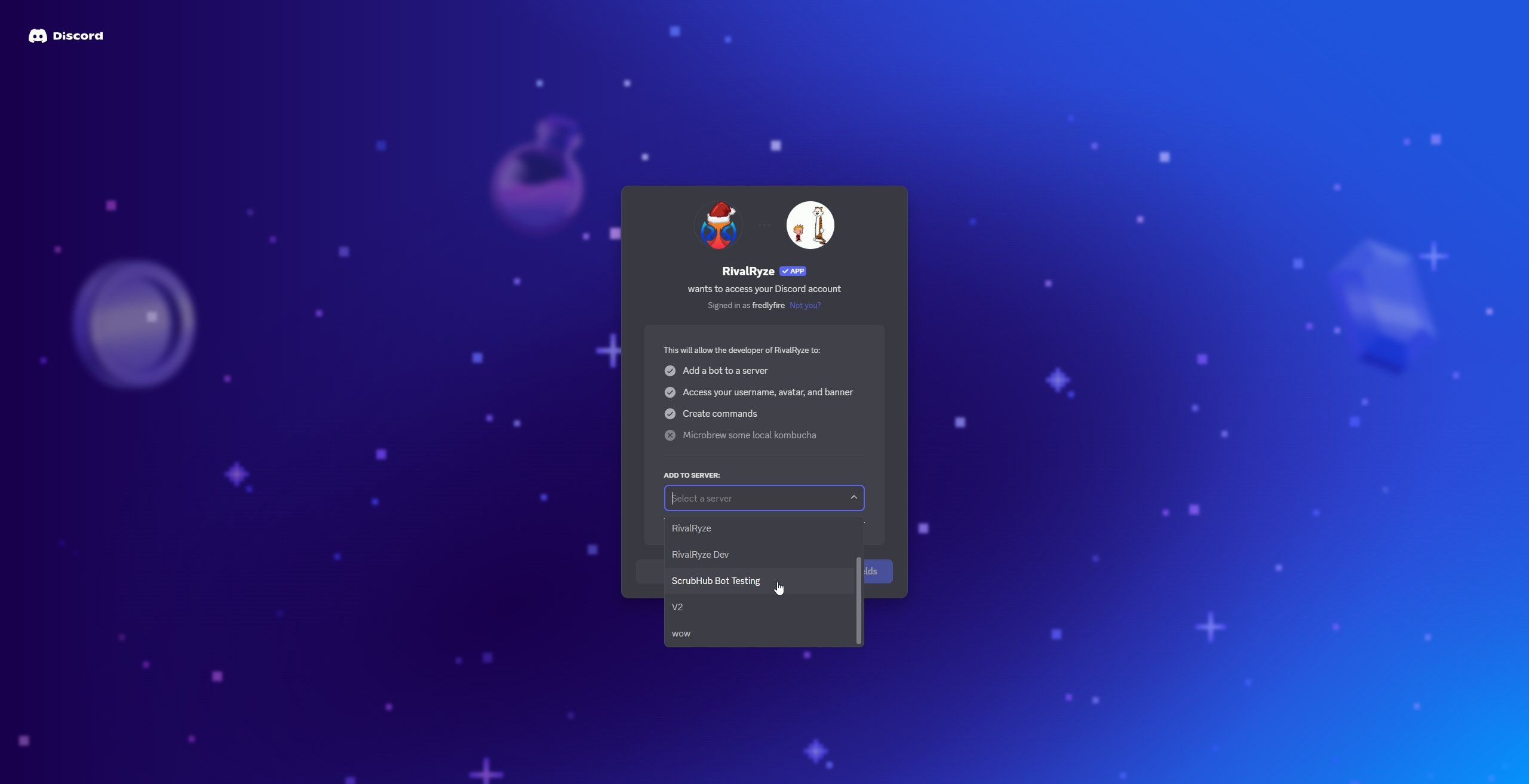
Review the permissions being requested
Click Authorize
Once approved, you’ll be redirected back to RivalRyze.
Step 4 — Complete the Guild Onboarding Flow
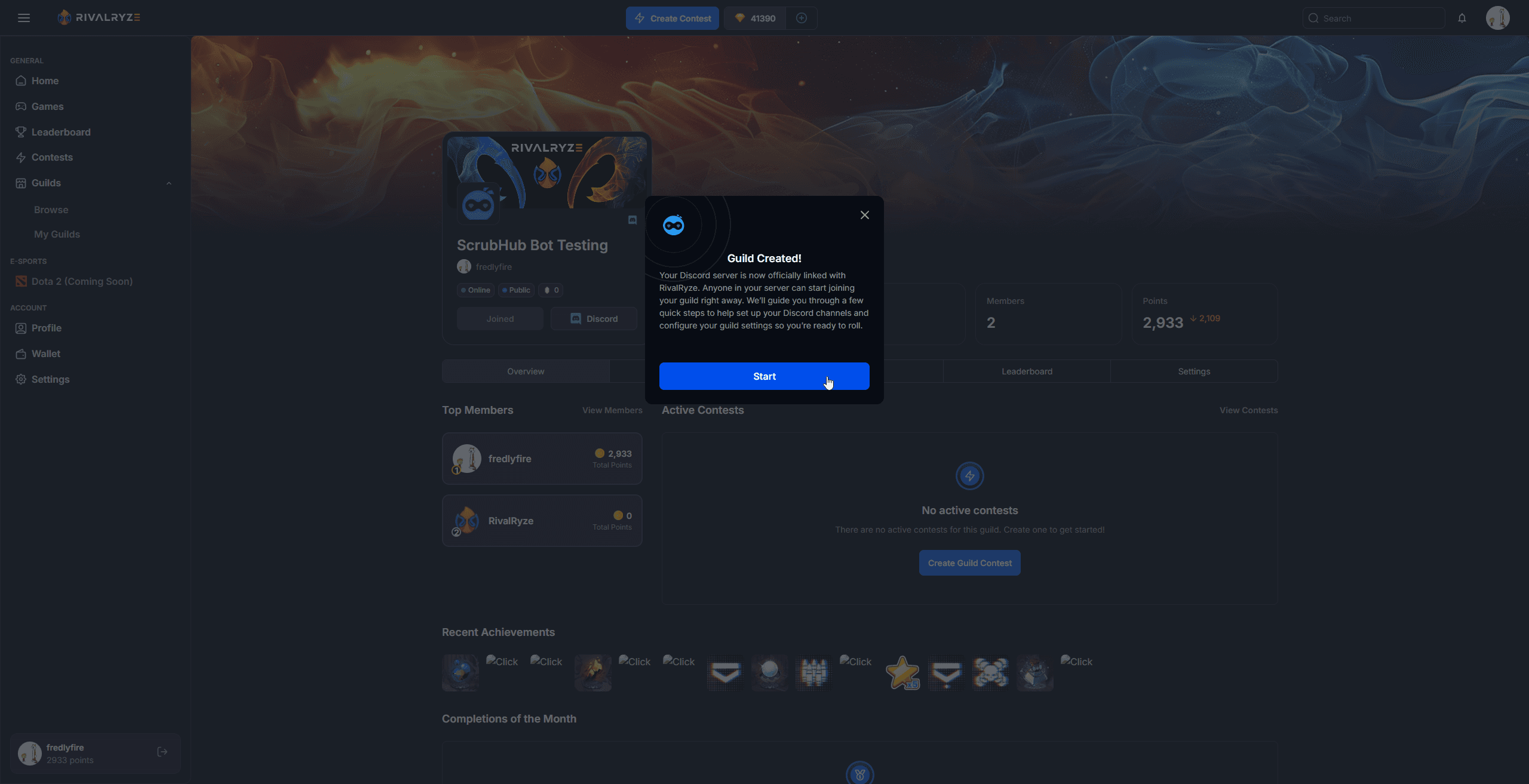
After you return to RivalRyze, you’ll enter the onboarding flow. This is where RivalRyze helps set up the core server structure.
4.1 Start onboarding
Click Start Onboarding to begin.
4.2 Enable Community Mode (Skip if already enabled)
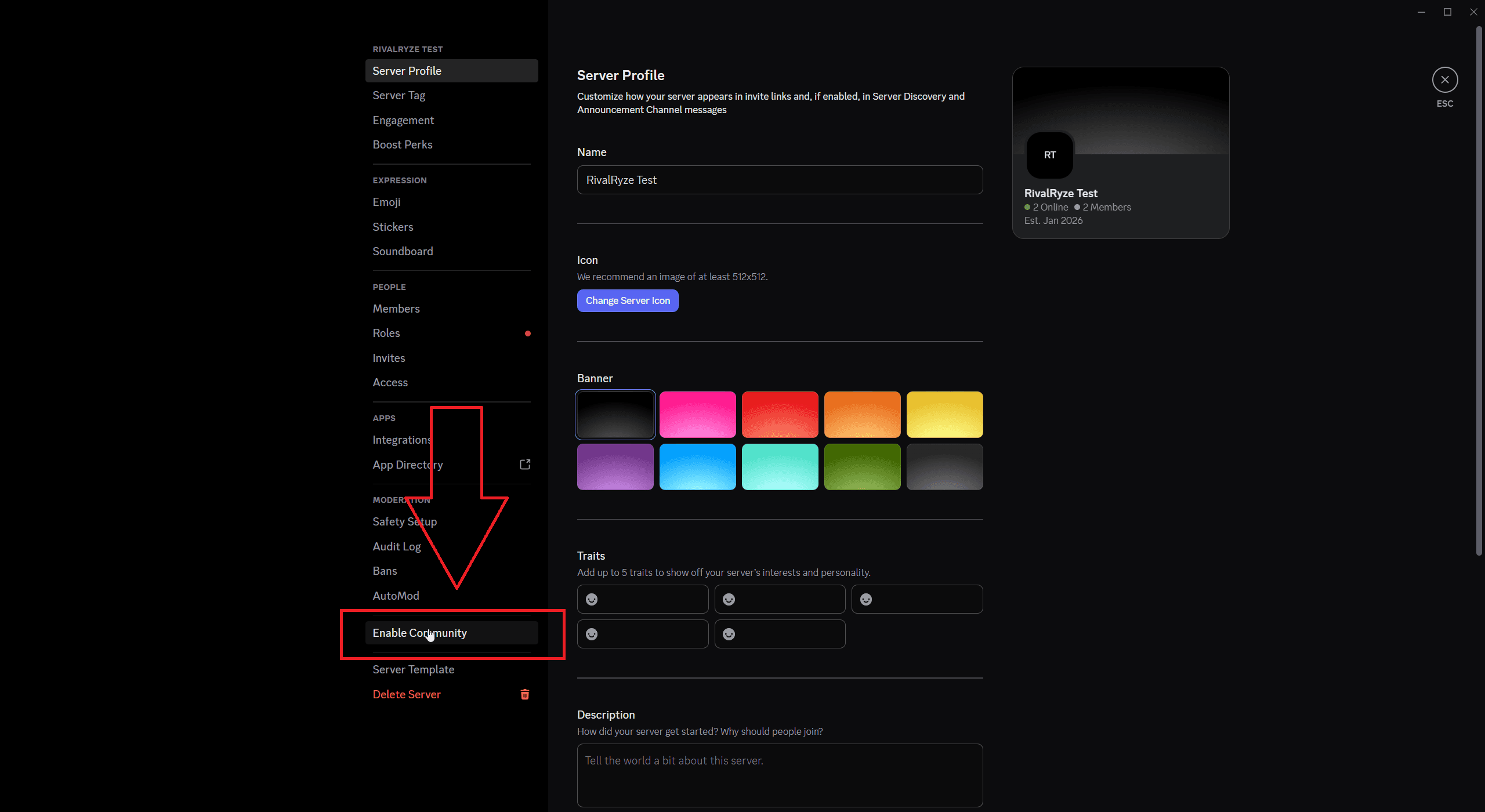
RivalRyze works best when your server has Community Mode enabled.
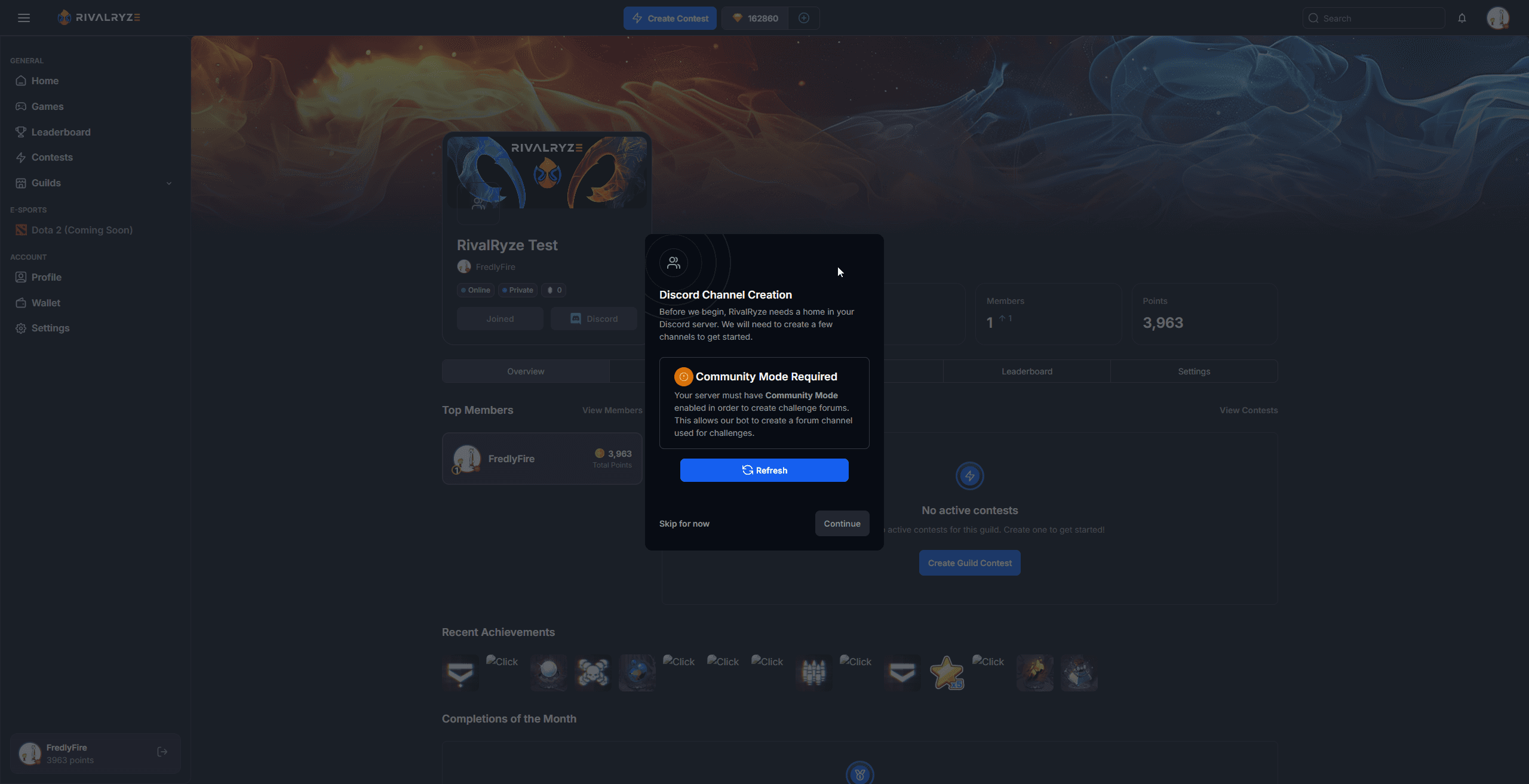
This does not make your server public
It unlocks Discord features like forums/threads, which RivalRyze can use for challenge organization.
Navigate to the server settings and follow the instructions to enable community mode.
4.3 Sync RivalRyze channels and category
Next, you’ll be prompted to sync the RivalRyze server channels/category.
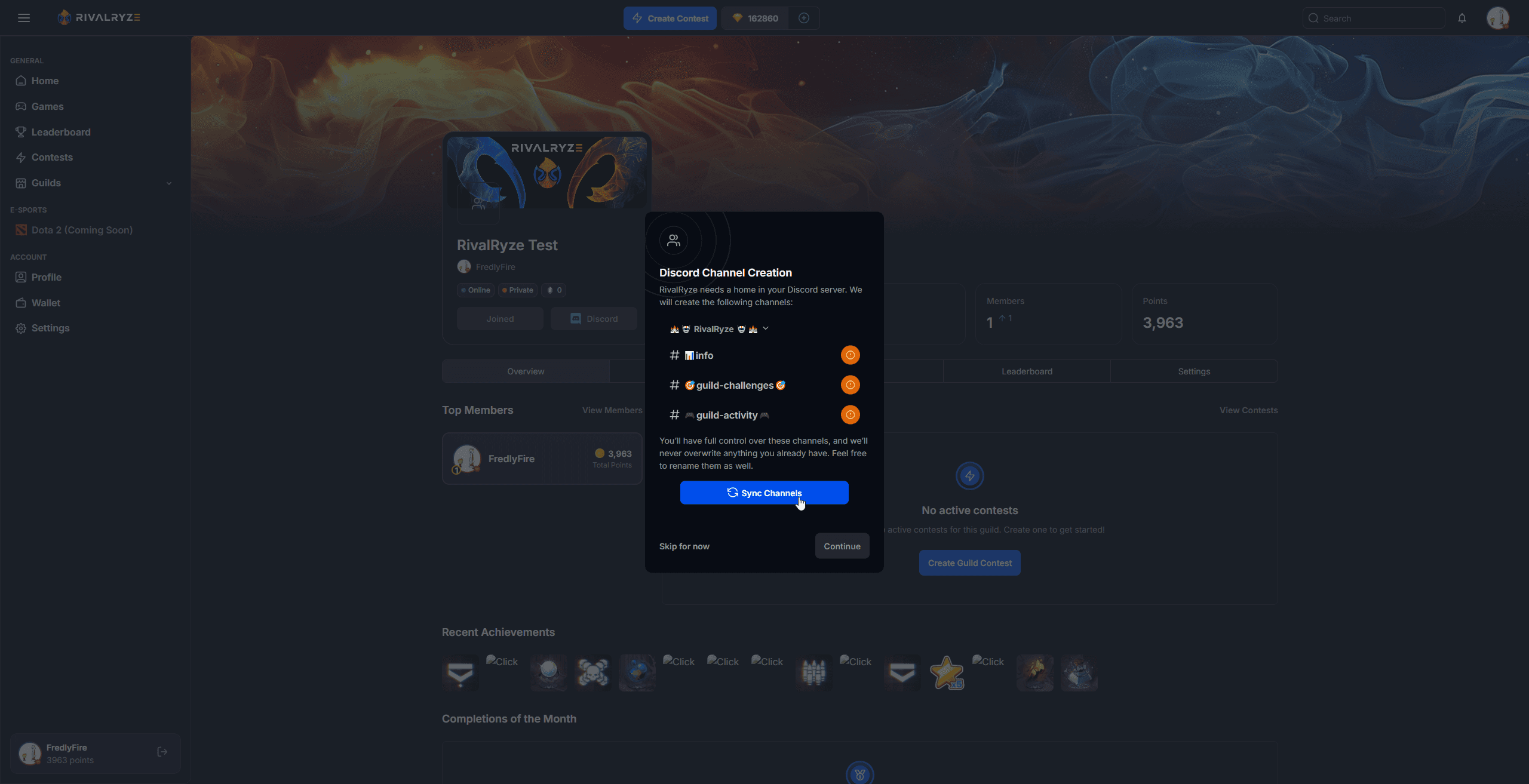
RivalRyze will create (or sync) a recommended structure for activity, challenges, and updates
You can rename channels later without breaking RivalRyze
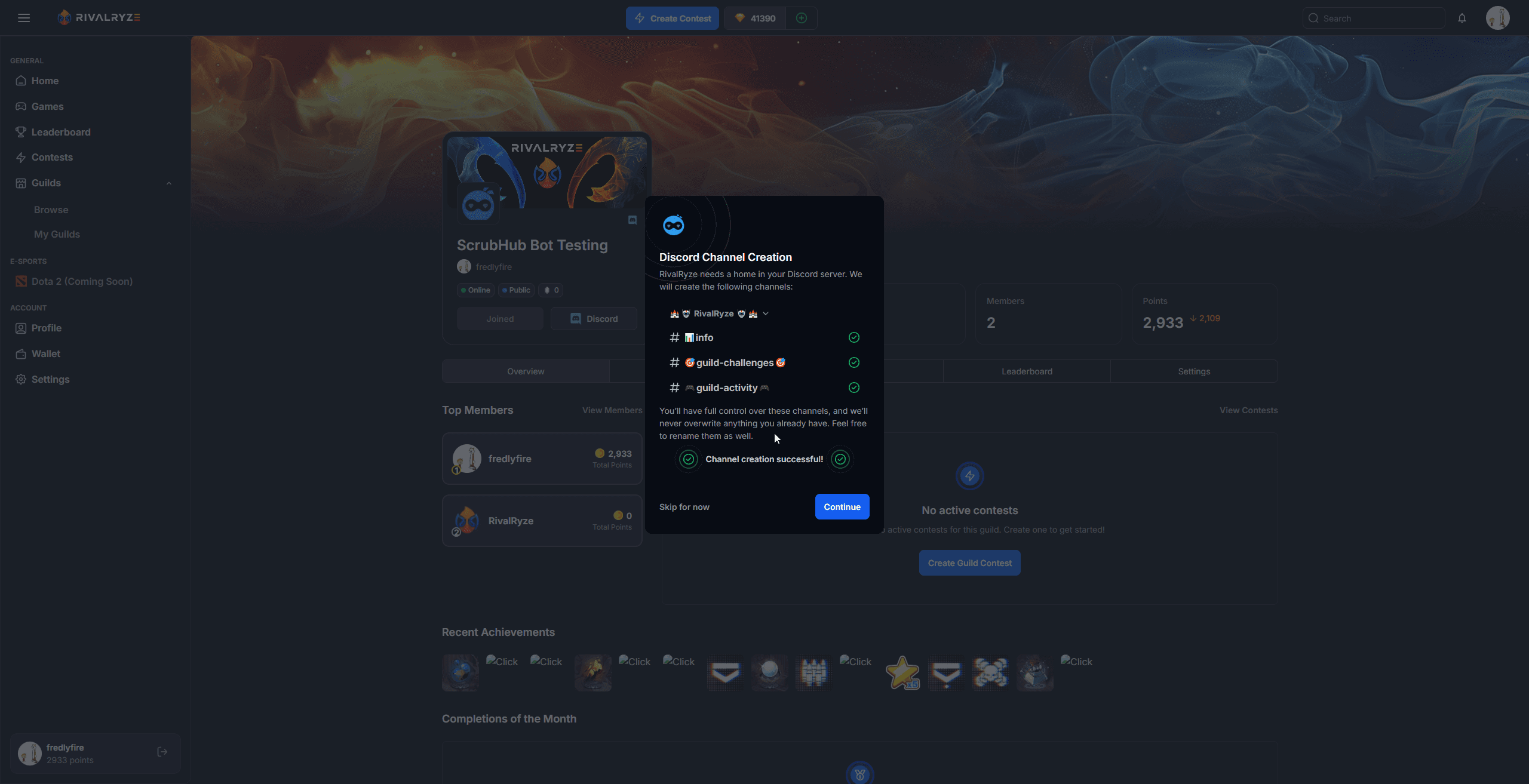
4.4 You’re all set
Once syncing completes, your server is ready.
Step 5 — Customize your Guild settings (recommended)
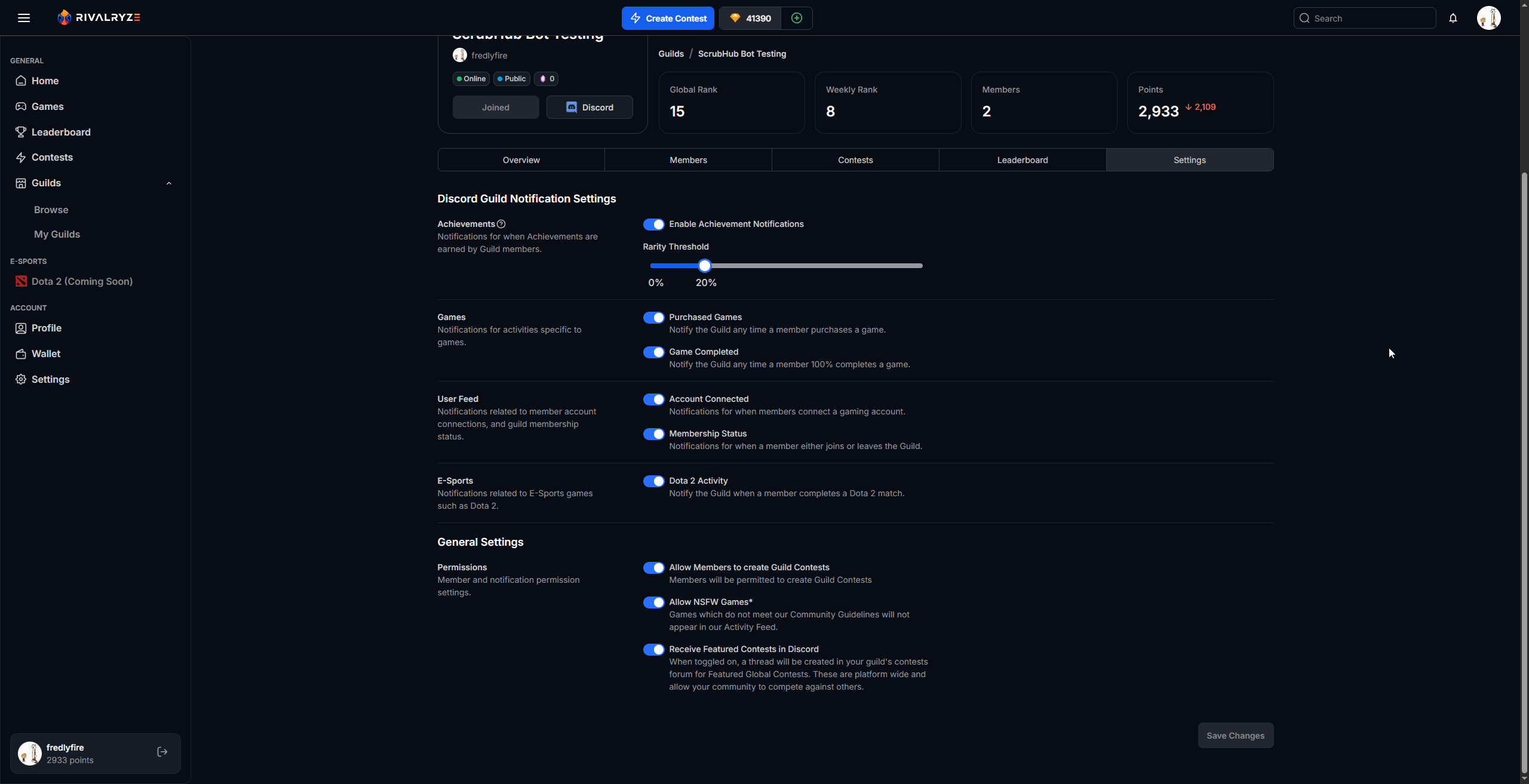
After onboarding, head to your Guild Settings in RivalRyze to tailor the experience:
Notification preferences (what gets posted to your server feed)
Admin settings and server configuration
Any channel-specific adjustments
Common issues and quick fixes
I don’t see my server in the Discord dropdown
You likely don’t have Manage Server (or equivalent) permissions on that server.
Onboarding redirected, but nothing happened
Re-open the Guild in RivalRyze and restart onboarding from the Guild page.
Forum/threads features aren’t available
Enable Community Mode in Discord. This is required for certain channel types (like forums).
Next steps
Once your Guild is live, you can start running contests immediately:
Create a contest!
Invite members to connect their accounts and join the Guild!
Watch the leaderboard and activity feed come to life inside Discord
Share post: